Salla Integration Guide
- Before you start
- Step 1: Open store settings
- Step 2: Open Installed apps
- Step 3: Find the Aymakan app
- Step 4: Choose the link type
- Step 5: Enter your API key
- Step 6: Complete the setup and save
- Troubleshooting
Connect your Salla store to your own Aymakan merchant account so shipments are created on your direct Aymakan contract.
Before you start
You need:
- An active Aymakan merchant account.
- Your Production API key. See Prerequisites for how to get it.
- The AyMakan app installed on your Salla store.
{warning} Use the Production API key, not the DEV key. A development key causes an Invalid Credentials error when shipments are created.
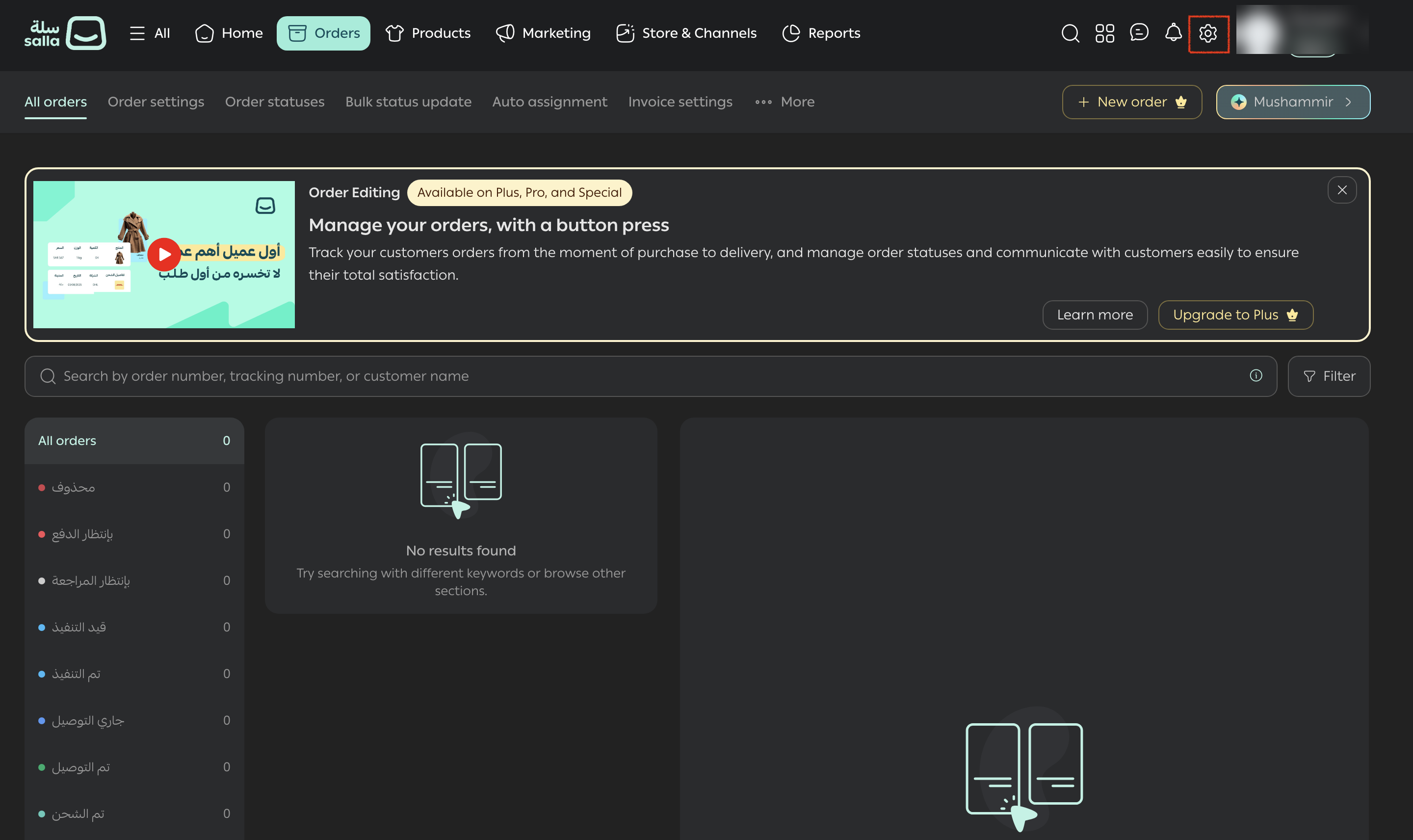
Step 1: Open store settings
- Log in to your Salla store dashboard.
- In the top navigation bar, click the Settings gear icon.
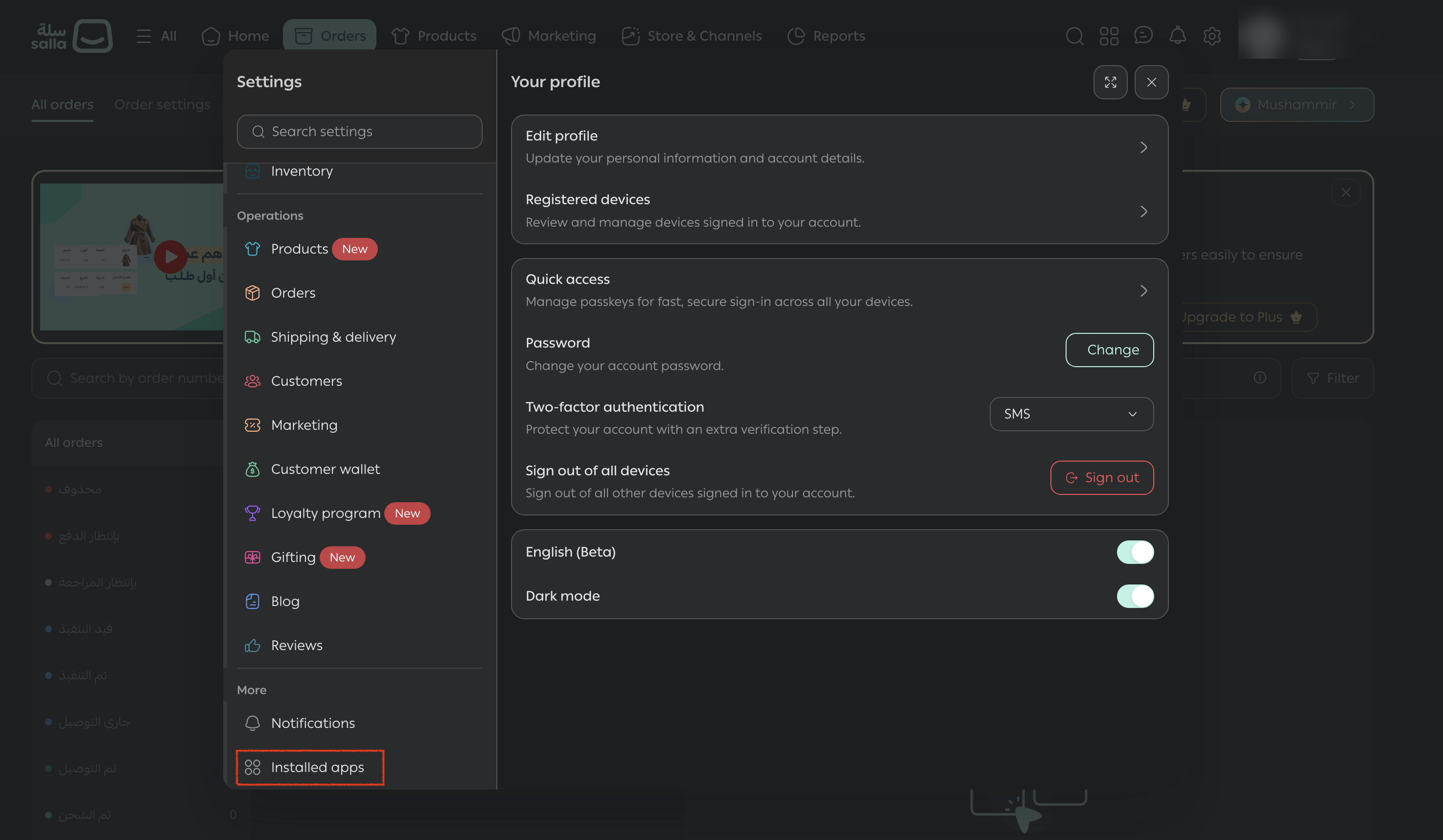
Step 2: Open Installed apps
- In the settings sidebar, scroll down to the More section.
- Click Installed apps.
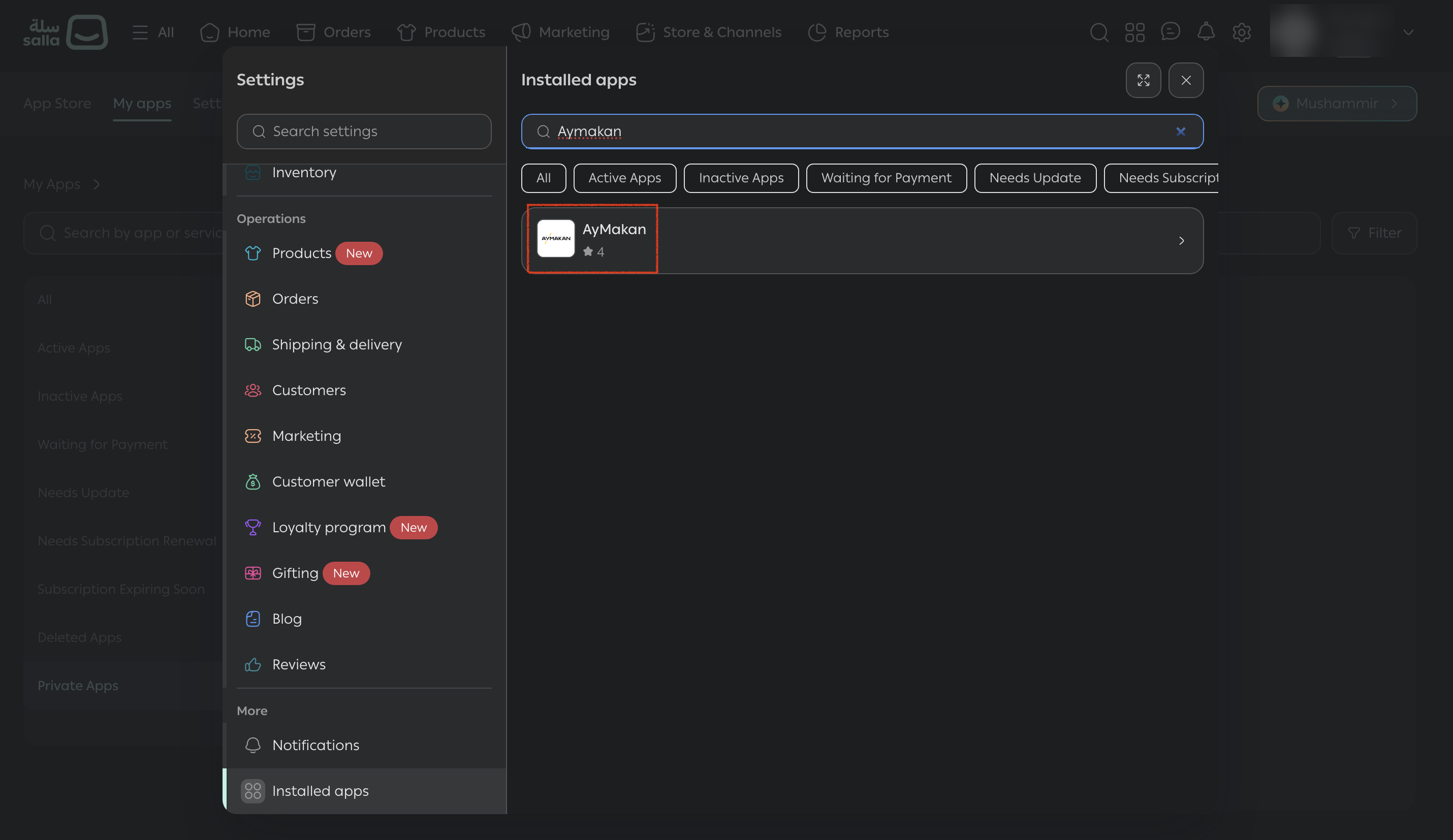
Step 3: Find the Aymakan app
- In the search bar, type Aymakan.
- Click the AyMakan app in the results to open its settings.
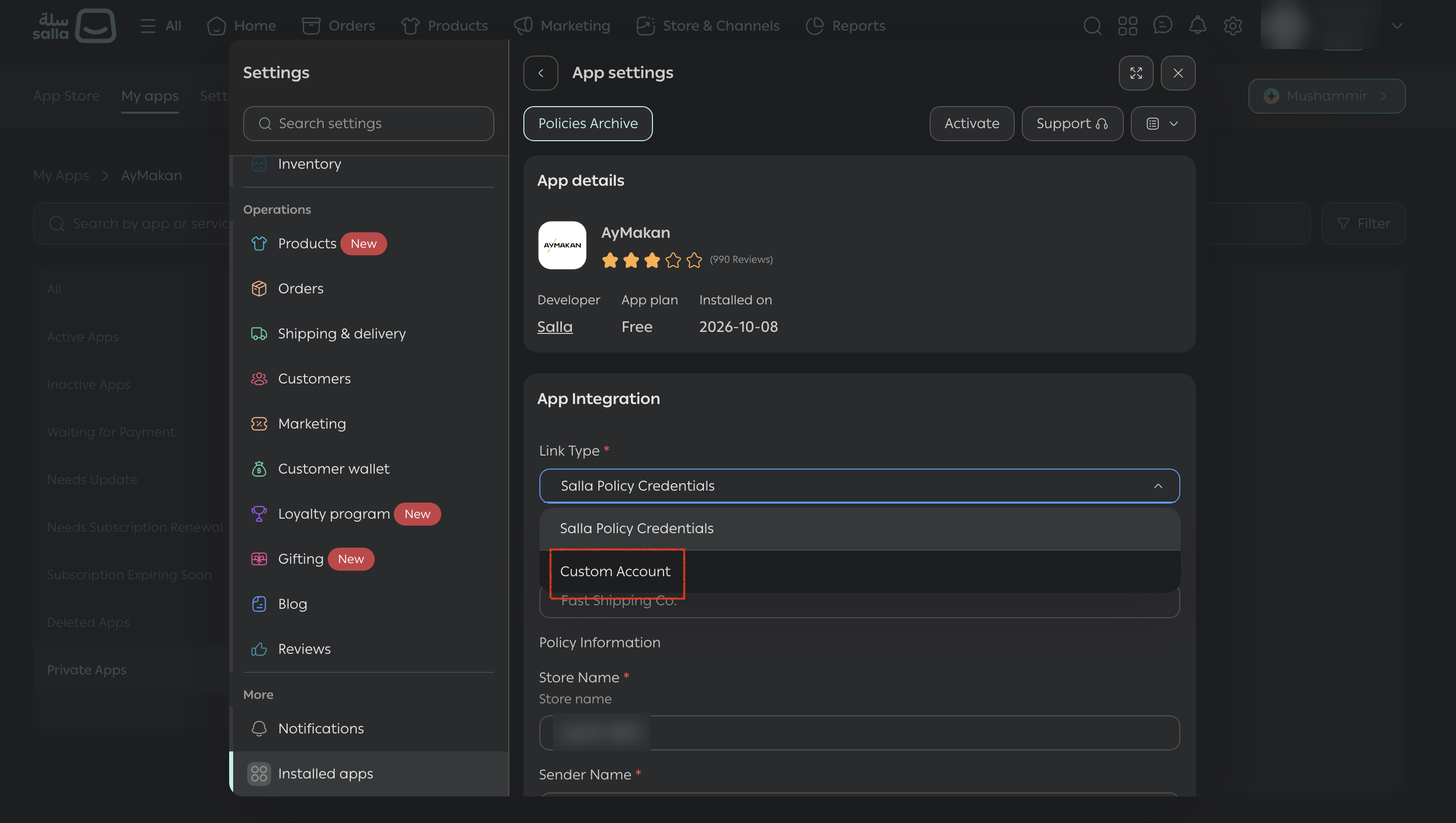
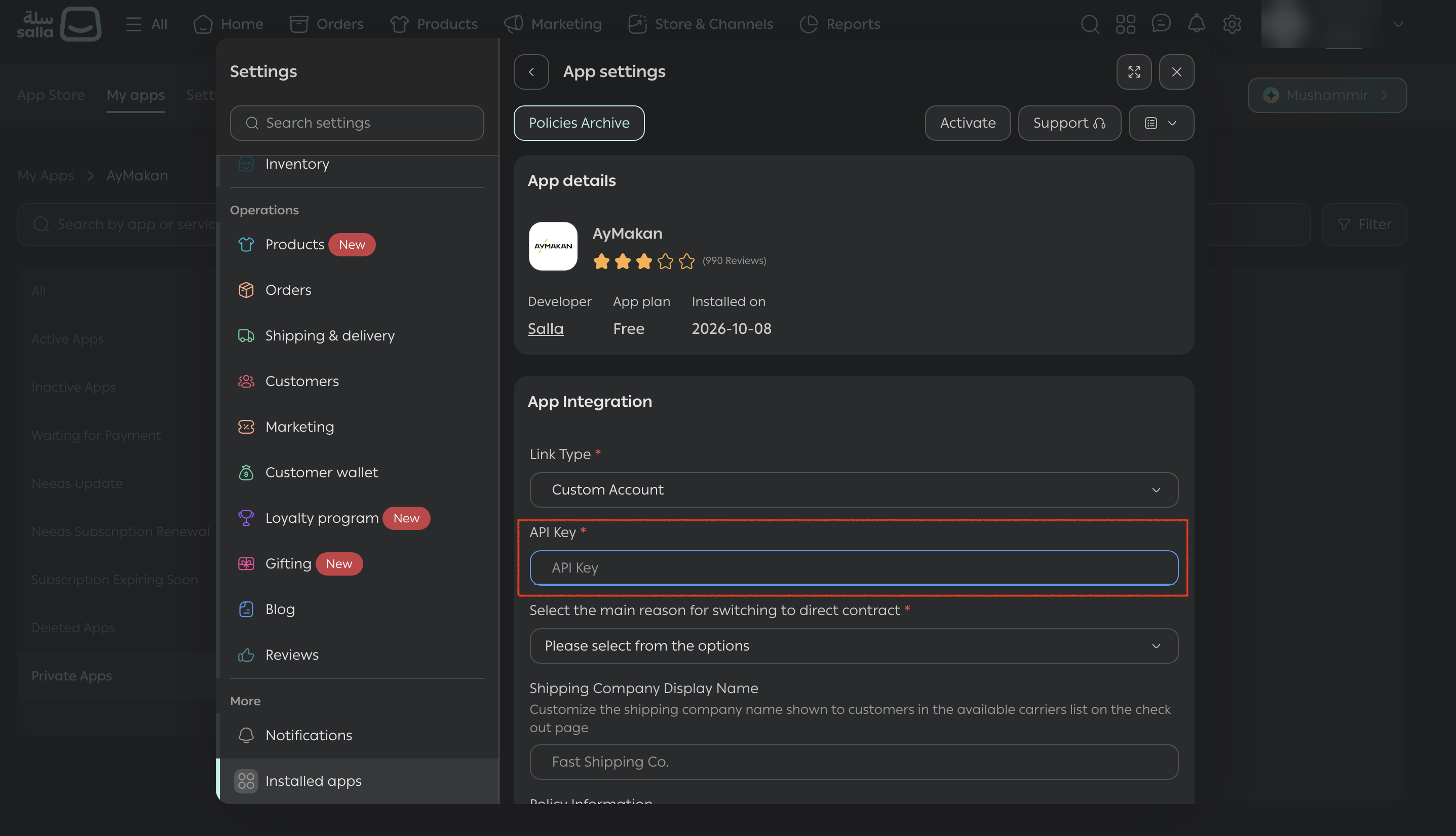
Step 4: Choose the link type
- Under App Integration, open the Link Type dropdown.
- Select Custom Account.
{info} The default option, Salla Policy Credentials, ships through Salla's contract. Choose Custom Account to use your direct Aymakan contract.
Step 5: Enter your API key
- After you select Custom Account, an API Key field appears.
- Paste the API key you copied from the Aymakan Customer Dashboard.
{warning} Make sure there are no extra spaces before or after the key when you paste it.
Step 6: Complete the setup and save
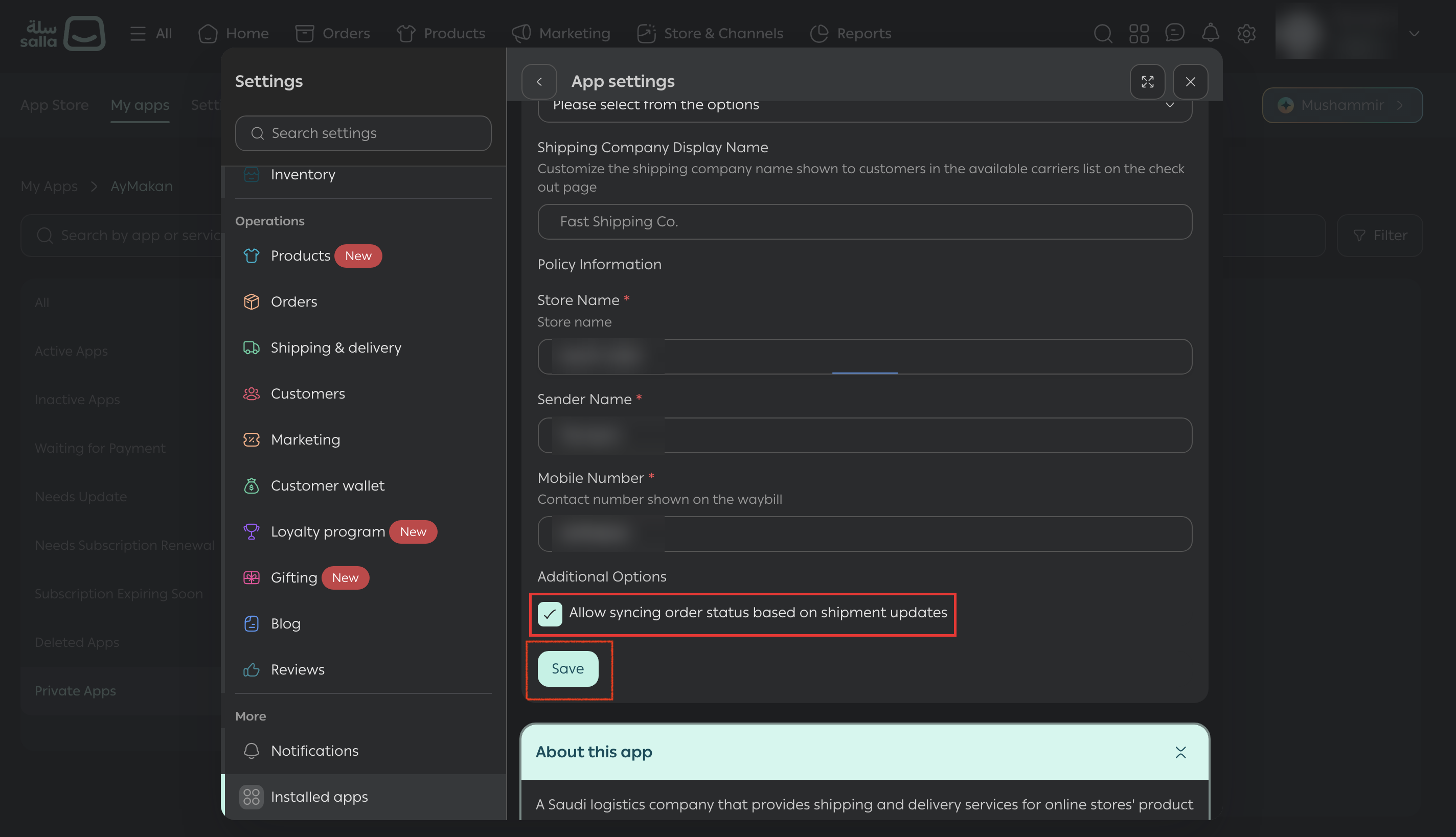
- Complete the remaining information.
- Under Additional Options, select Allow syncing order status based on shipment updates. This keeps your Salla order statuses updated as the shipment moves.
- Click Save.
{tip} Your Salla store is now connected to Aymakan.
Troubleshooting
- Shipment creation fails with "Invalid Credentials": the API key is wrong, outdated, or from the DEV environment. See Invalid Credentials.