Zid Integration Guide
- Before you start
- Step 1: Open Logistics
- Step 2: Browse other shipping providers
- Step 3: Find Aymakan
- Step 4: Activate the service
- Step 5: Install the app
- Step 6: Log in to Aymakan
- Step 7: Add a collection address
- Step 8: Fill in the address details
- Step 9: Confirm the integration
Connect your Zid store to Aymakan so you can create shipments and print Aymakan AWB labels directly from your Zid orders.
Before you start
You need:
- An active Aymakan merchant account, plus the email and password you use for the AyMakan Customer Dashboard.
- The email of your Zid store account.
{info} Zid asks you to complete courier registration before you activate the service. If you don't have an Aymakan account yet, create one first.
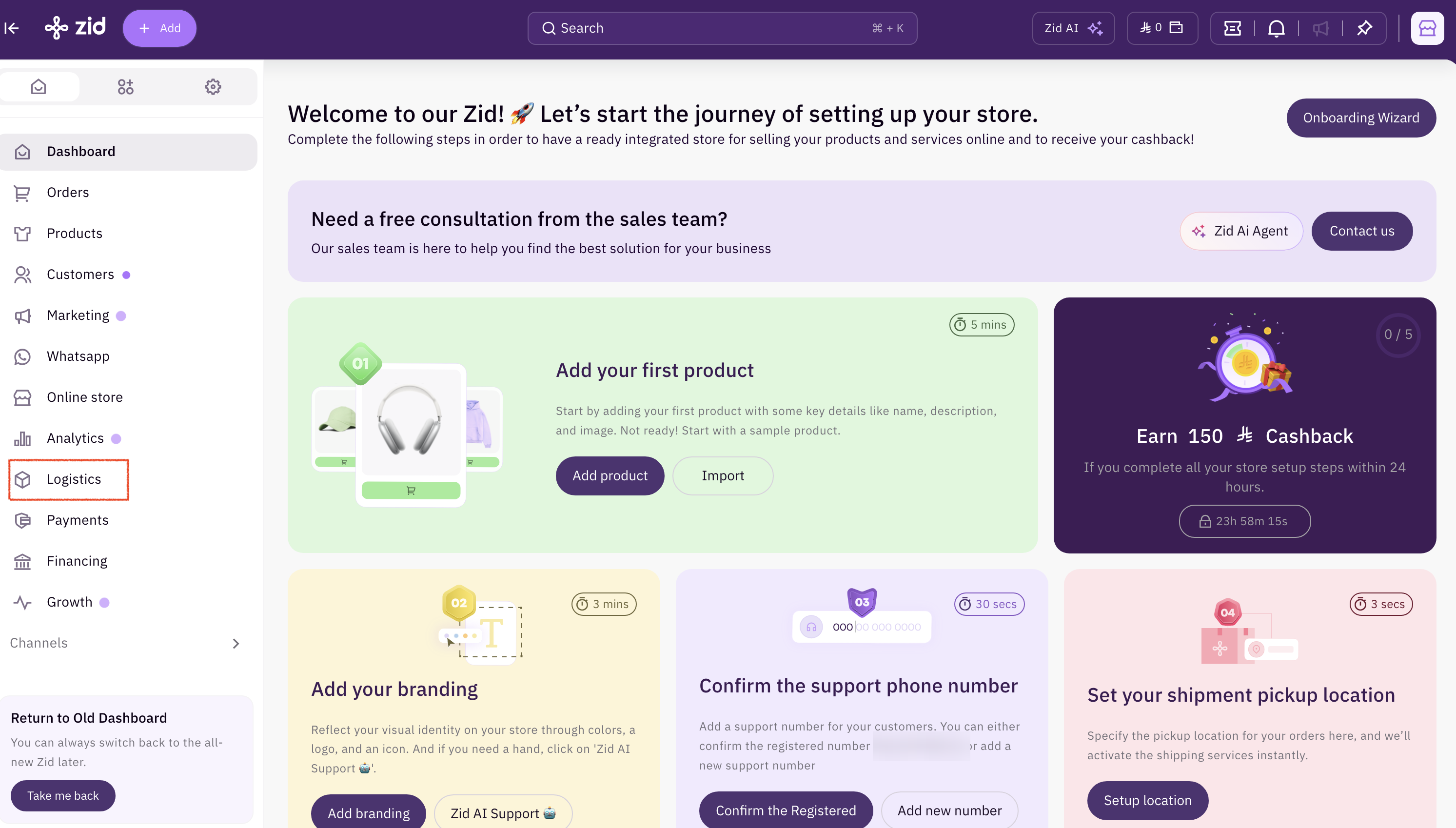
Step 1: Open Logistics
- Log in to your Zid store dashboard.
- In the sidebar, click Logistics.
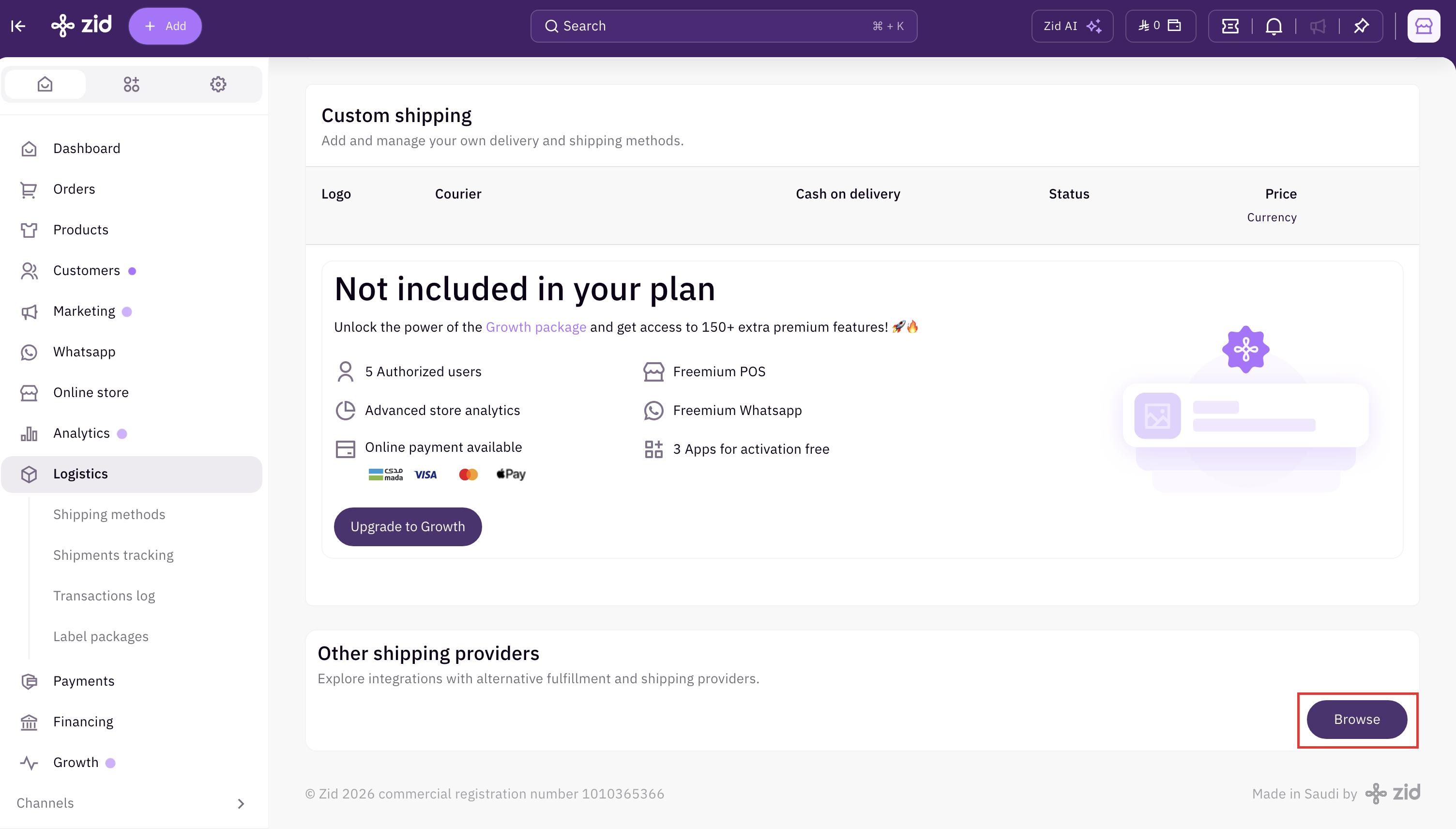
Step 2: Browse other shipping providers
- Scroll down the Logistics page to the Other shipping providers section.
- Click Browse.
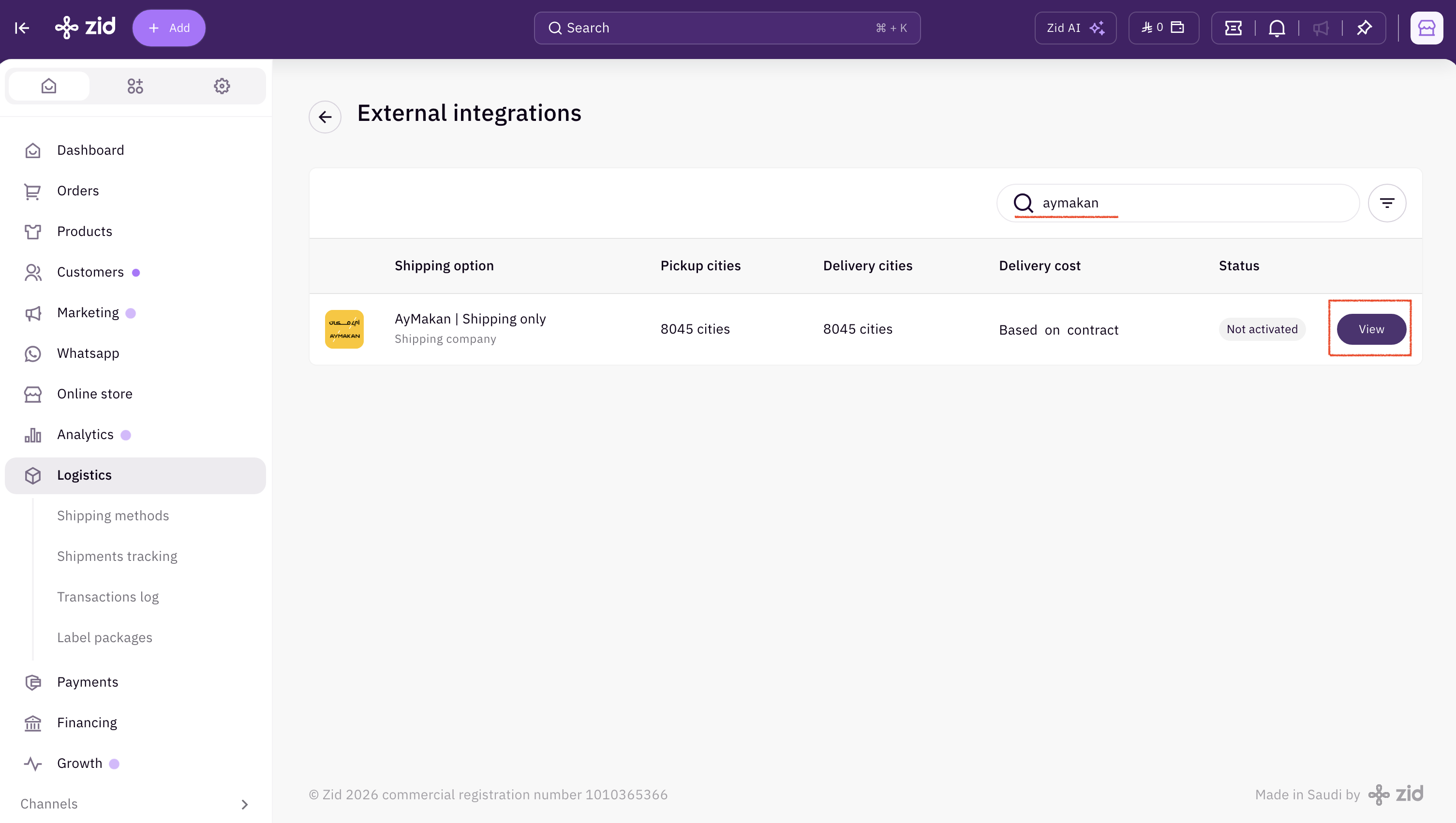
Step 3: Find Aymakan
- On the External integrations page, type aymakan in the search bar.
- Next to AyMakan | Shipping only, click View.
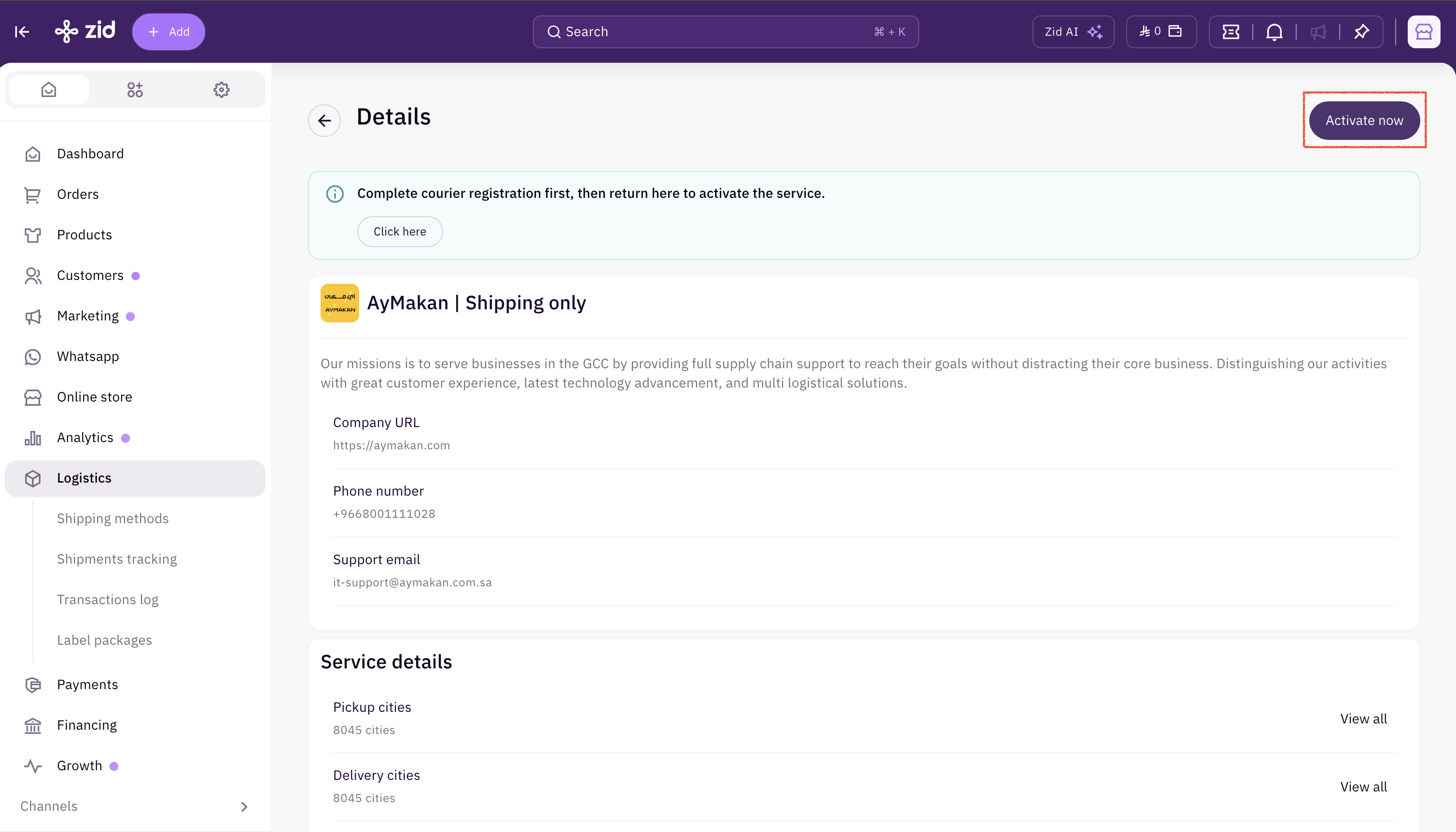
Step 4: Activate the service
- On the Aymakan Details page, click Activate now in the top-right corner.
Step 5: Install the app
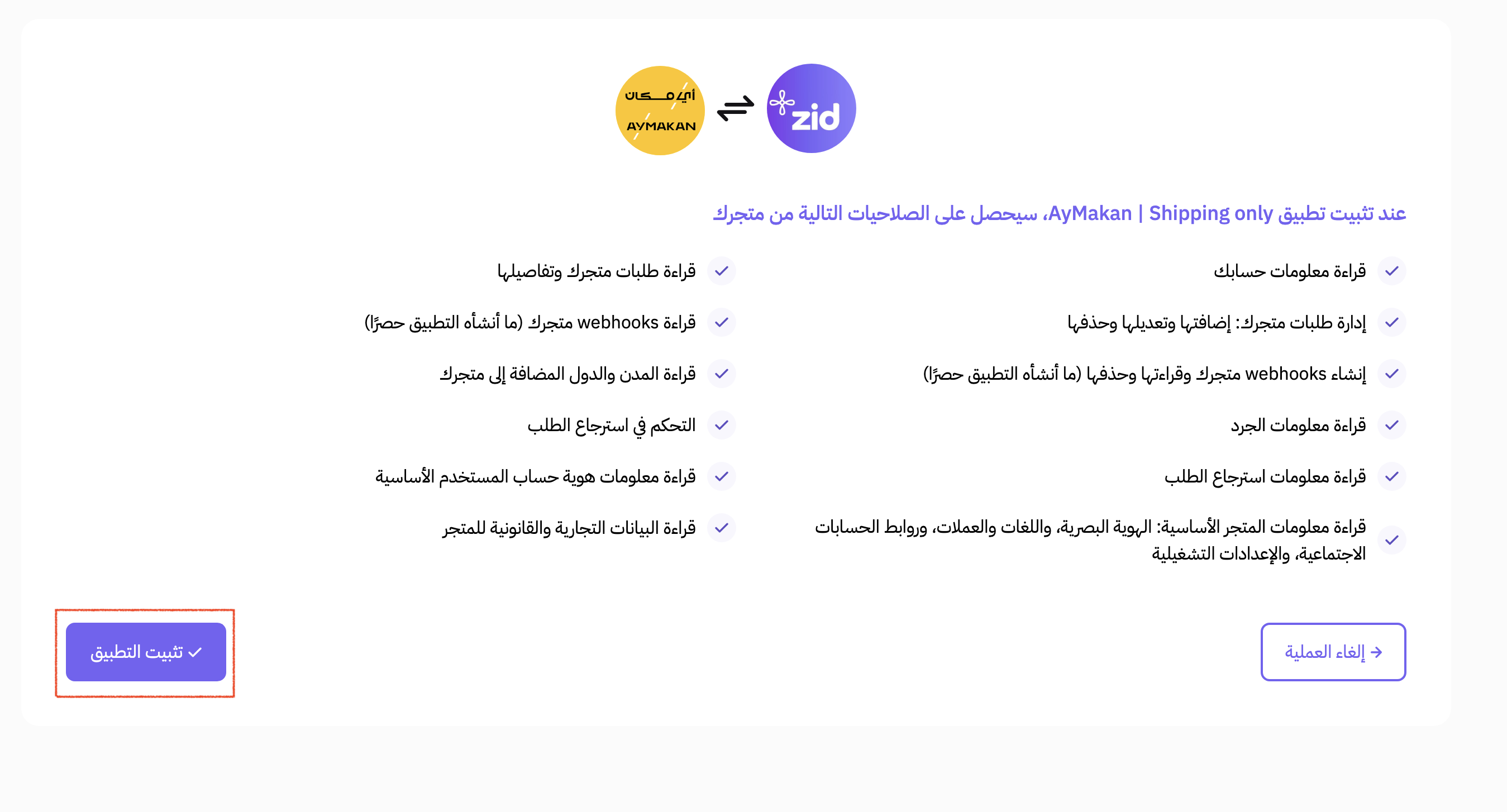
- Zid shows the permissions that the AyMakan | Shipping only app needs.
- Review the permissions and click Install App at the bottom of the page.
Step 6: Log in to Aymakan
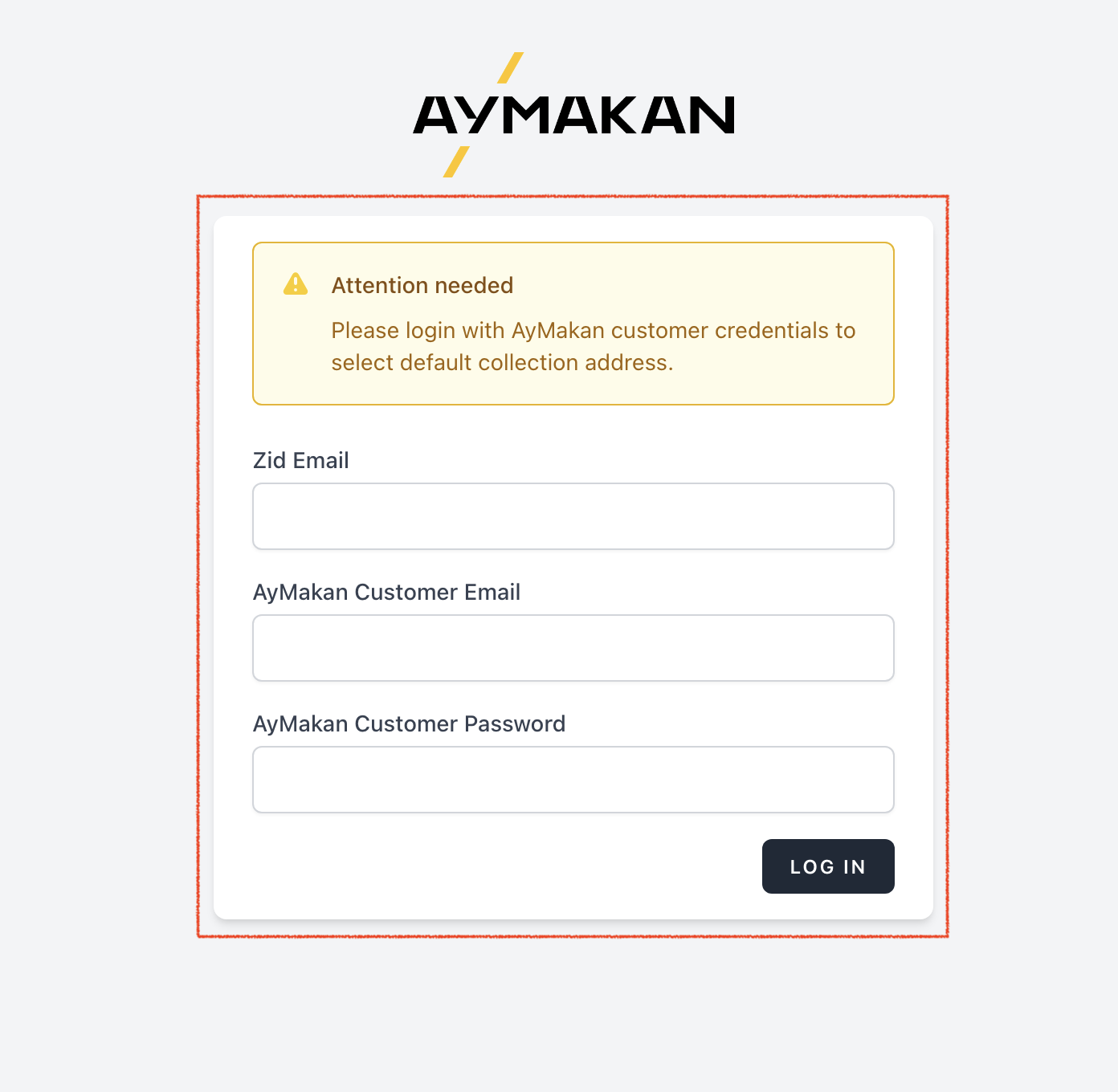
- On the Aymakan login page, enter:
- Zid Email: the email of your Zid store account.
- AyMakan Customer Email: your Aymakan merchant account email.
- AyMakan Customer Password: your Aymakan merchant account password.
- Click LOG IN.
Step 7: Add a collection address
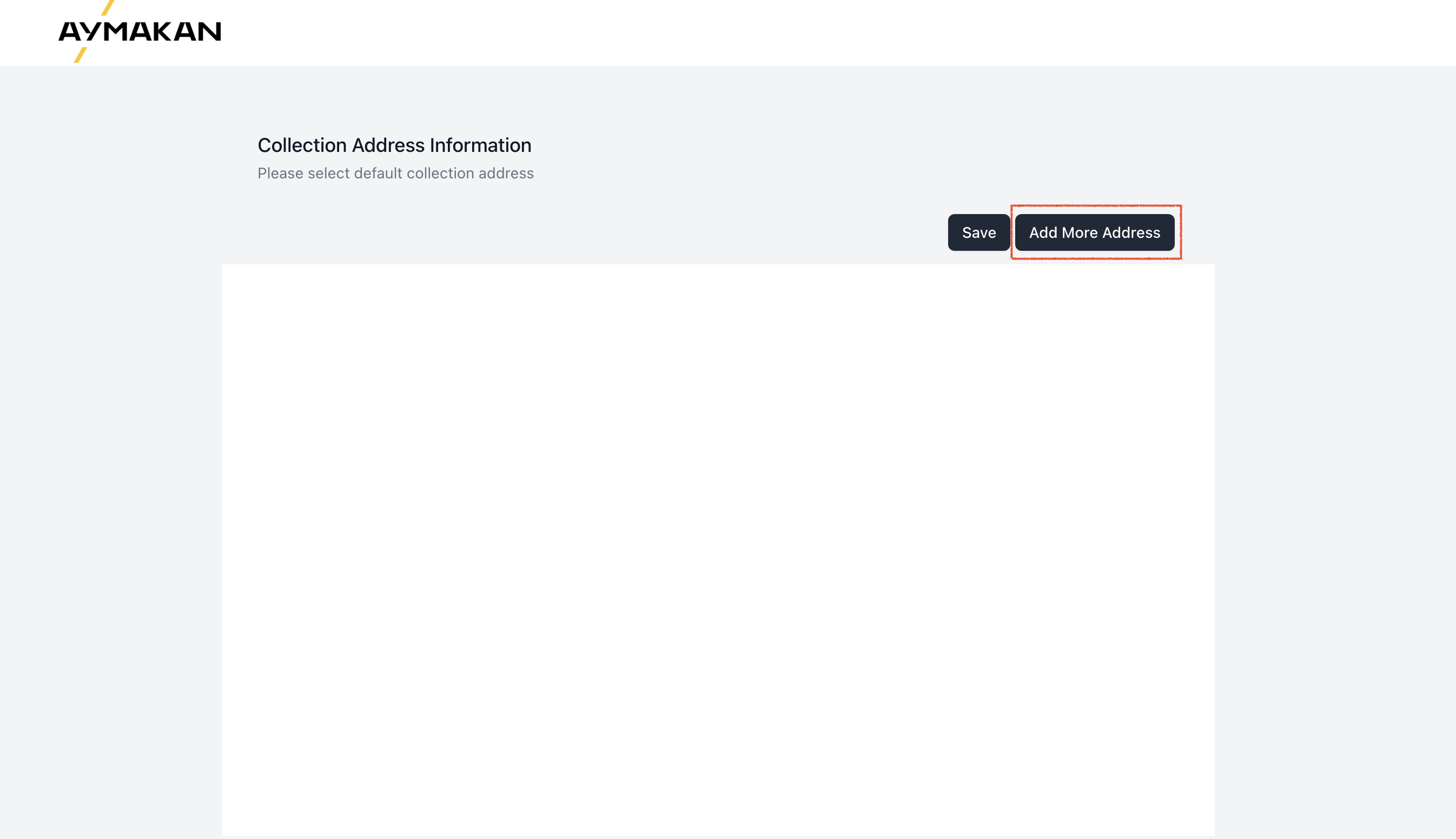
The collection address is where the Aymakan driver picks up your shipments.
- On the Collection Address Information page, click Add More Address.
Step 8: Fill in the address details
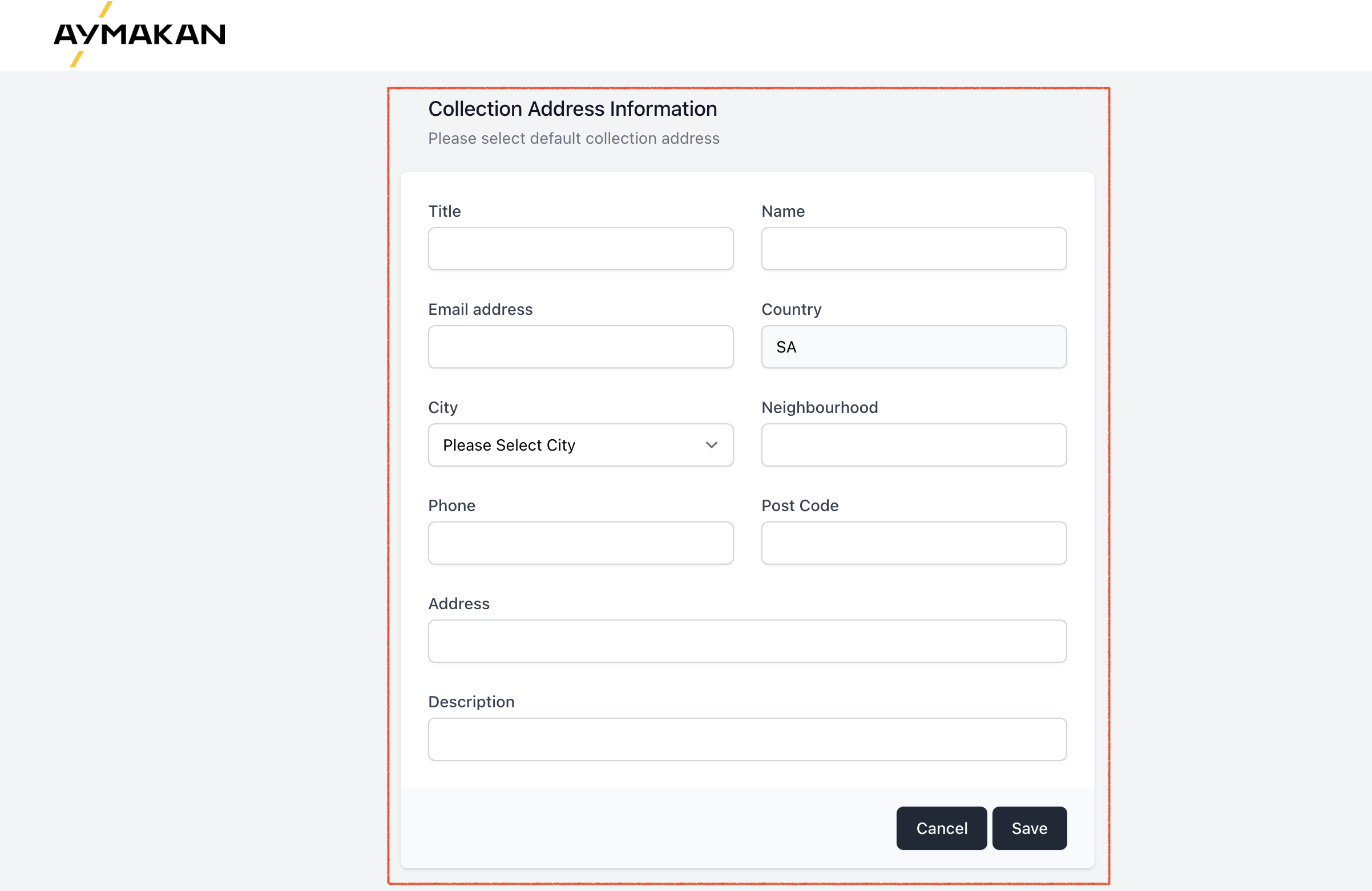
- Complete the collection address information.
- Click Save.
Step 9: Confirm the integration
You're returned to the Aymakan Details page in Zid. A Deactivate button now appears where Activate now was, which means the service is active.
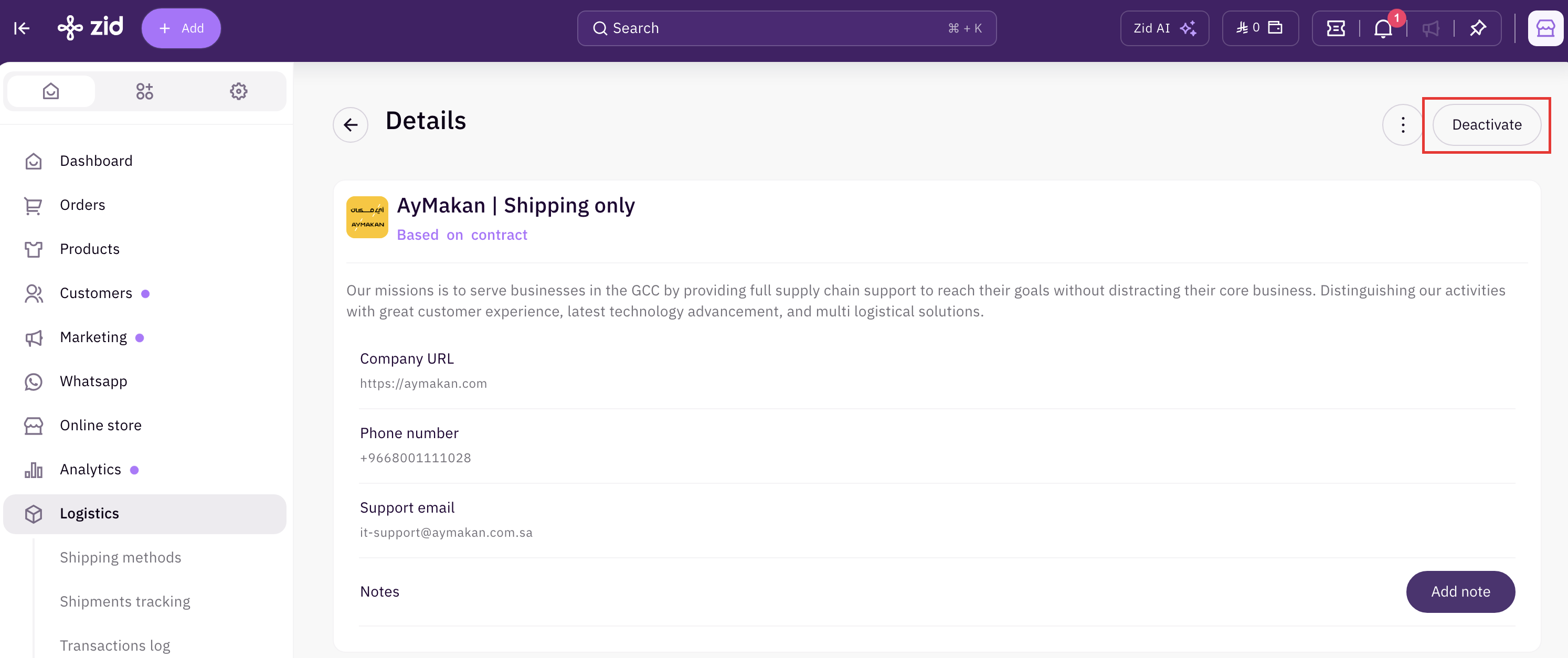
{tip} Your Zid store is now connected to Aymakan. You can create shipments and print Aymakan AWB labels from your Zid orders.